What Every Self-Publisher Needs to Know Before Using a Daily Note Book KDP Interior
You’ve found the perfect shortcut. A Daily Note Book KDP Interior bundle that’s been tested on Amazon, includes multiple page counts, and promises an instant download. It’s tempting to grab the PDF, hit upload, and watch your notebook go live. But experienced creators know that even a “KDP tested” file can trip you up if you skip a few critical steps. These interiors are excellent foundations, not foolproof magic. Paying attention now can save you from returns, poor reviews, and wasted ad spend later.
What Exactly Is a Daily Note Book KDP Interior?
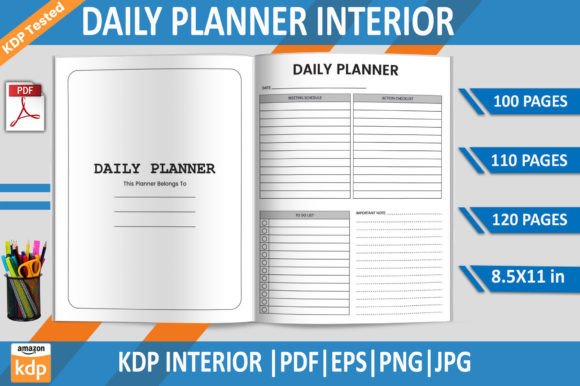
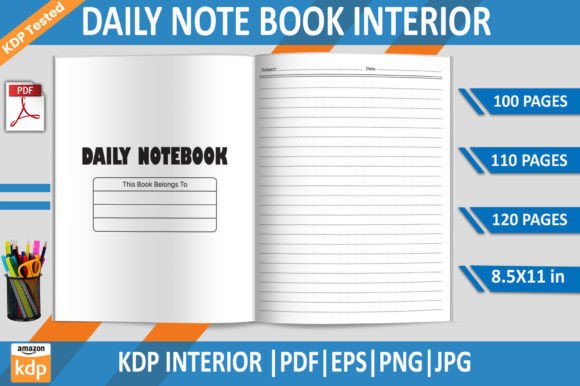
Think of it as your ready-made skeleton for a notebook, journal, or diary. Instead of designing lined or dotted pages from scratch, you get a complete interior — typically a PDF with 100, 110, or 120 pages — sized at 8.5×11 inches, 300 DPI, and without bleed. The bundle often includes an editable EPS file for Adobe Illustrator, plus high-resolution JPG and transparent PNG files for covers or promotional images. For anyone publishing low-content books on Kindle Direct Publishing, this type of Daily Note Book KDP Interior slashes creation time from hours to minutes.
Yet the very convenience can lead creators to overlook details that trip the KDP automated checker or, worse, disappoint a buyer holding a physical copy. Understanding what the interior file does and doesn’t do will protect your brand.
Mistake 1: Trusting “No Bleed” Without Double-Checking Your Trim Size
When the product description says “Bleed No Bleed,” many assume they can upload the PDF as-is. That’s mostly true for books with no images touching the edge of the page. But sometimes KDP’s previewer will still flag margin errors or add an unwanted white border if you’ve inadvertently set your book to bleed during the title setup. A mismatch here can cause your interior to be resized automatically, making text look off-center or cutting into page numbers.
How it affects you: Misaligned margins or a crooked look in the final print copy immediately signals “low quality” to customers. A notebook that feels unprofessional collects dust, not repeat buys.
A better approach: Before uploading, go to your KDP bookshelf, create a new paperback, and under “Interior & Paper Type,” select white paper and no bleed. Only after that should you upload the interior PDF. Then use the online previewer to flip through a few pages. Check that the header lines, footer text, and any decorative elements sit at least 0.25 inches from the edge. If the tool shows a warning, stop and verify you haven’t accidentally mixed up a cover template with the interior file.
Mistake 2: Ignoring Page Count Confusion
The bundle offers 100, 110, and 120-page versions. That’s a blessing, because your spine width depends on the exact number of sheets. But some new publishers list a book as 120 pages, upload the 120-page PDF, and then get surprised when KDP adds blank pages to reach a required minimum for certain paper types. Or, they pick the 100-page PDF but charge a premium price expecting a thicker journal, and end up with a book that feels flimsy.
Why it matters: KDP’s minimum page count for cream paper is often 24 pages, but for white paper with certain trim sizes, it might be higher. If you force a mismatch, the final book thickness won’t match your cover’s spine calculation. A cover that’s too wide creates an awkward gap; one that’s too narrow can make the book look bent.
Realistic example: A seller published a daily planner using the 110-page PDF but built a cover with the spine width for 100 pages in a calculator. The resulting book had edges that didn’t align with the cover fold, and the first buyer left a photo review showing the flaw. Sales stalled.
Practical advice: Pick your page count first, then design your cover using KDP’s official cover calculator. If you’re offering multiple page counts in different editions, create a separate listing for each. A Daily Note Book KDP Interior gives you flexibility, but your job is to match it exactly with the physical product description.
Mistake 3: Misusing the EPS and PNG Files
The EPS file is editable — a fantastic perk for adding your own branding, page numbers, or a custom table of contents. But many people open it in Adobe Illustrator and accidentally shift objects, rescale without preserving proportions, or ungroup layers that were set up to maintain spacing. Others mistakenly upload the PNG files as interior pages, thinking they can place them in a PDF. A transparent background PNG looks crisp on a screen, but in a print interior it can cause transparency flattening issues, introducing faint lines or compression artifacts.
Consequence: A muddy print output, or pages that look pixelated because the PNG wasn’t placed at 300 DPI correctly. KDP’s print technology handles vectors and embedded text best, so straying from the prepared PDF can degrade quality fast.
Better handling: Use the EPS file only to customize the design in Illustrator while keeping the original layout intact. When done, export to a new print-ready PDF with fonts outlined, no transparency, and at 300 DPI. Keep the provided PDF as your untouched backup. Use PNGs solely for Amazon product images, A+ Content, or social media graphics — never as page content. That way, the Daily Note Book KDP Interior works as intended.
Mistake 4: Skimming Over the Tested PDF Details
It’s reassuring to read that “Files were tested on Amazon KDP to checkup quality.” However, what “tested” means can vary. A file might pass the automated check without errors but still have pages that print slightly darker than expected, or margins that look generous on a screen but feel cramped once the book is bound. Some interiors include a faint header or footer line that, on certain printers, gets cut off despite being within the safe zone.
What you risk: A product that technically meets KDP’s specs yet still earns comments like “Pages seem off-center” or “Hard to write near the inner margin.” Customer satisfaction hinges on the subtle feel of a notebook, not just a pass/fail check.
Actionable step: Order a printed proof copy before you launch. Yes, it adds time, but holding the physical book reveals issues no screen can show. Flip through the 100-page, 110-page, and 120-page versions to decide which feels best. Check if the binding eats into the writing area. If you’re using a dot grid or lined layout from the interior, make sure the line spacing feels natural at actual size. Small tweaks to the EPS file can then fix any discomfort.
Mistake 5: Overlooking the “Instant Download” Mindset Trap
Instant downloads encourage speed. You buy, you upload, you publish — often within an hour. This rush can cause you to skip vital steps like updating the metadata, writing a proper description, or even comparing your notebook with competitors. A quick publish without differentiation means your daily notebook looks identical to dozens of others, right down to the same interior pages. The Daily Note Book KDP Interior gives you a high-quality baseline, but it’s your unique touches that convert browsers into buyers.
How to stand out: Take the editable EPS file and add subtle, functional elements: a habit tracker footer, a subtle inspirational quote on every other page, or a dedicated space for the date. Change the header style slightly to match your brand colors. Then, use the adjusted file for a truly one-of-a-kind product. This small extra effort can mean the difference between a forgotten listing and a book that builds a fan base.
What to Check Before You Upload Any Daily Note Book KDP Interior
Prevention is faster than damage control. Keep a short mental checklist every time you work with an interior file:
- Page dimensions: Ensure the PDF’s trim box is exactly 8.5×11 inches. Open it in Adobe Acrobat and check the document properties.
- Color space: Your file should be CMYK, not RGB. Some interiors are delivered in RGB; converting before upload ensures darker, more consistent text.
- Font embedding: Even if the text looks fine on your computer, a missing font can revert to a generic typeface. Outline all text in the EPS, and when exporting a new PDF, select the option to embed all fonts.
- Margins that match binding: The gutter margin (the inner edge) often needs a bit more breathing room. Check that no vital element sits within 0.375 inches of the spine side.
- Page numbering: If your interior doesn’t include numbers and you want them, add them to the EPS file before generating the final PDF. A blank notebook without page numbers can be a feature, but be intentional about it.
Turning a Good Interior Into a Great Customer Experience
A daily notebook is a tactile product. Buyers touch it, write in it, and judge it on paper quality as well as layout. While you can’t change the paper weight KDP offers, you can optimize the interior design to feel luxurious. Use the EPS file to ensure that the line spacing isn’t too cramped — especially if you’re targeting journalers who use fountain pens. Consider adding a subtle, repeating background pattern at a low opacity on the edges if you want a premium feel. Just be certain the elements stay within the non-bleed safe zone.
For sellers aiming at multiple niches, the bundle’s variety lets you create a gratitude journal (110 pages), a daily task planner (120 pages), and a simple diary (100 pages) from one purchase. Keep a master folder with the original files untouched, and create copies for each variation. Document what you changed so you can replicate your workflow. This organized approach turns a $10 interior into the backbone of a low-content publishing library.
The Real Value of a Tested, Multi-Format Interior
When you buy a Daily Note Book KDP Interior with EPS, PNG, and JPG files, you’re not just getting pages; you’re getting compatibility across your design workflow. The transparent PNG can sit on your cover mockup without a white box ruining the design. The JPG gives you a quick social media preview. The EPS file, when handled correctly, becomes your playground for making the notebook truly yours. Combine that with KDP’s print-on-demand engine, and you have a legitimate asset — provided you respect the technical nuances.
Stay curious about the details. The difference between a forgettable notebook and a staple in someone’s daily routine often hides in a 0.1-inch margin or a spine calculation you double-checked at midnight. Use the interior files as a launchpad, not a crutch, and your publishing efforts will pay off in consistent sales and genuine reader satisfaction.