Daily Planner KDP Interior Book for Creative Publishers
Turning a blank page into a structured, sellable planner can feel repetitive when you’re starting from scratch every time. The Daily Planner KDP Interior Book removes that friction. It’s a ready-to-use, professionally formatted set of interior files specifically tested for Amazon Kindle Direct Publishing. Instead of wrestling with margins, gutters, and page alignments, you get a clean 8.5×11-inch layout that’s already proven to meet KDP’s print standards. For anyone building a low-content or medium-content publishing catalog, this collection brings speed and consistency without sacrificing creative control.
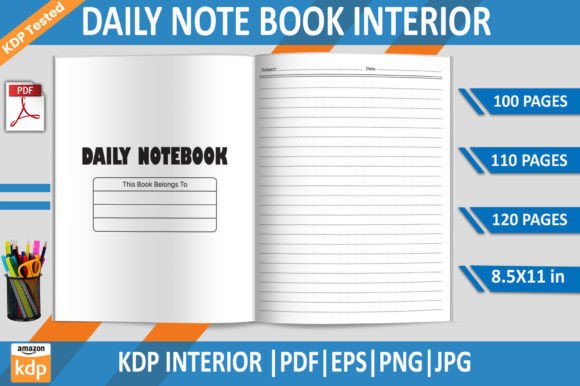
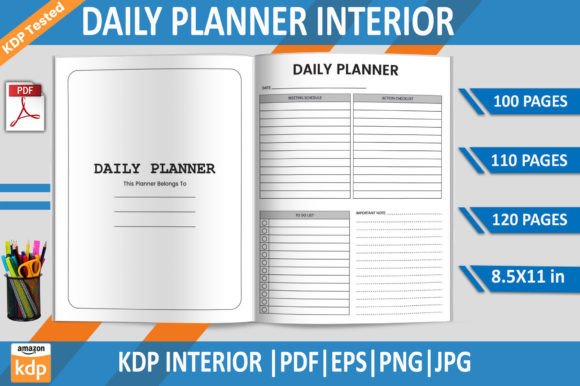
What makes this product particularly useful is the format range. You receive fully prepared PDF files in three page counts—100, 110, and 120 pages. Each is exported at 300 DPI with no bleed, so you skip the technical guesswork. The bundle also includes an editable EPS file, a transparent-background PNG, and a high-resolution JPG. This flexibility means you aren’t locked into a single look. You can use the PDF as-is for a fast launch, pull the EPS into Adobe Illustrator to make it your own, or extract elements from the PNG to build layered designs in tools like Canva or Affinity Designer.
What’s Inside the Daily Planner KDP Interior Book
The core files are built around a daily undated layout that works across many niches. Each page typically includes space for priorities, a schedule, to-dos, notes, and sometimes a gratitude or reflection prompt. Because the dates aren’t baked in, one interior can serve customers year-round—no need to update annually unless you want a fresh twist.
Here’s the complete asset list and what each format does best:
- PDF 100, 110, and 120 pages – Print-ready, fully aligned interiors. Upload directly to KDP, check the preview, and publish.
- Editable EPS file – Open in Adobe Illustrator to modify fonts, add brand colors, insert icon sets, or rearrange sections.
- Transparent-background PNG – Ideal for dragging into design apps, overlaying on custom backgrounds, or creating promotional mockups.
- High-resolution JPG – Use for digital planners, website previews, or as standalone page designs for other projects.
All files are KDP tested, meaning the PDFs have gone through Amazon’s upload check to verify trim size, resolution, and internal content clarity. This alone saves hours of back-and-forth when you’re aiming for a smooth launch.
Tailoring the Layout for Niche Planner Success
A generic daily planner might blend into the sea of search results, but the same interior can become a targeted product when paired with a niche cover and keyword strategy. Take the daily undated format from this interior set and shape it for specific audiences:
- Fitness & Wellness – Use the notes section as a meal log or water intake tracker, and rebrand the priorities block as “Movement Goals.” Add simple coaching prompts in the EPS to reflect a health-focused voice.
- Creative Entrepreneurs – Reframe the daily layout around project milestones. Turn the schedule area into time-blocking for deep work, and keep a “Big Ideas” section for spontaneous thoughts.
- Teachers & Students – The 120-page version fits a semester perfectly. Rename sections as “Assignments,” “Study Blocks,” and “After-School” to match academic rhythms.
- Gratitude & Mindfulness – Soften the tone with pastel accents in the editable file and replace standard headers with prompts like “Morning Intention” and “Evening Reflection.”
The beauty of an undated interior is that a single investment spawns multiple products. You can create a branded series—say, a Minimalist Daily Planner, a Bold Motivational Edition, and a Floral Softcover version—all using the same core pages but differentiated through covers and slight text tweaks. This approach keeps your catalog cohesive while appealing to distinct buyer moods.
Branding with Editable EPS Files
The EPS file is where brand identity takes shape. Instead of uploading a generic interior, open the file in Illustrator and weave in elements that tell a story. Change header fonts to match your cover typography. Drop in a small logo on each spread or subtly tint the page corners with a brand color sampled from your cover design. If you sell a companion product like a habit tracker or a budget journal, carry over the same divider lines and margin spacing so the family of products feels intentional.
When editing, stick to a few practical rules to keep the layout print-clean. Maintain the no-bleed safety zone, avoid placing text too close to the spine edge, and keep all elements inside the established margins. The original files are already balanced for readability, so any changes should preserve white space and scanning ease. If you’re not an Illustrator expert, even small adjustments—like swapping out a motivational quote at the bottom of each page—can make the planner feel custom and less like a mass-market template.
Choosing the Right Page Count for Your Audience
The inclusion of 100, 110, and 120-page options isn’t just about variety; it’s about aligning with real-world usage patterns. A 100-page planner works beautifully for shorter challenges, seasonal journals, or as a lightweight travel companion. Think of a 100-day mindset reset or a quarterly business sprint. The 110-page version hits a sweet spot for a 3.5-month planner, while 120 pages covers a full four-month semester or a summer-long project planner.
You can also use the different page counts to structure your product ladder. Offer the 100-page version at a slightly lower price point as an entry-level product, then introduce the 120-page as a “deluxe extended edition.” Both still use the same interior architecture, so your design workload barely changes. For buyers who want a full-year planner, you can easily duplicate pages in the PDF before uploading (provided the page count stays within KDP’s limits), but having the pre-built options gives you a fast track to market for seasonal or time-bound offers.
Maintaining Professional Print Quality for KDP
Amazon KDP’s content review process will flag interiors with blurry text, low-resolution images, or unexpected margins. This product sidesteps those pitfalls because each PDF is already set at 300 DPI, sized to an exact 8.5×11 inches, and formatted without bleed. The internal lines and text remain crisp when printed, and the uniform spacing prevents awkward page cuts. When you upload any of the three PDFs, you can confidently select “No Bleed” in the print options and trust that the preview will look clean.
Always use the KDP previewer to flip through the entire book before hitting publish. Check that the daily template sits centered, that page numbers (if included) don’t creep too close to the edge, and that the overall contrast supports easy writing once the planner is in a customer’s hands. If you’ve edited the EPS file, re-export your final version as a print-ready PDF with the same no-bleed settings, convert all fonts to outlines, and flatten transparencies to avoid any rendering surprises at the printer.
Expanding Your Product Line with Complementary Items
The daily planner interior can act as the anchor for a whole suite of products. Because you have the transparent-background PNG, you can pull individual page elements—like the to-do list block or the daily schedule grid—and repurpose them into separate notebooks. A standalone “Daily To-Do Pad” using the same grid lines and font style creates instant brand recognition across your catalog.
Pair the 100-page version with a matching monthly planner, then bundle them as a complete planning system. Design a simple habit tracker that uses the same header style, and suddenly you have three products that share visual DNA but serve different planning needs. This strategy helps customers find your store and recognize quality across listings, which often leads to multi-product carts. And since the original interior files are already print-optimized, any derivative product you build inherits that same reliable structure.
Ideas for First-Time Users and Seasoned Sellers
If you’re new to KDP and want a low-risk first product, start with the 100-page PDF as-is, pair it with a clean, text-based cover you design in Canva, and publish. Focus on a narrow niche like “Daily Planner for Night Shift Workers” or “ADHD-Friendly Daily Planner” where the layout’s structure genuinely helps someone organize a non-traditional schedule. Write a clear description that explains how the undated format and simple sections reduce overwhelm.
For experienced publishers, these files become a productivity booster. Use the EPS to quickly prototype multiple variations, run small-batch author copies to test paper feel, and refine the interior based on customer reviews. Because the heavy layout work is already done, you can cycle through cover designs and keyword sets faster, learning which angles resonate before investing in a completely custom interior.
Whether you’re building your first planner or your fiftieth, an interior that’s already tested, flexible, and print-ready gives you the creative freedom to focus on what matters: connecting a useful product with the person who needs it.